
How to Edit the Footer in WordPress: A Step-by-Step Guide
The footer is a critical, yet often overlooked, part of any professional website. It appears on every page, providing a consistent space for essential links, contact information, legal disclaimers, and brand reinforcement. For agencies and SaaS businesses, a well-organized footer builds trust and improves user experience. If you’re unsure how to edit the footer in WordPress, you’ve come to the right place. This guide will walk you through four straightforward methods, suitable for any skill level or theme type.
Whether you need to update a copyright year, add a privacy policy link, or redesign the entire section, mastering footer edits gives you more control over your site’s branding and functionality. We’ll cover everything from the user-friendly Theme Customizer to more advanced options for complete creative freedom.
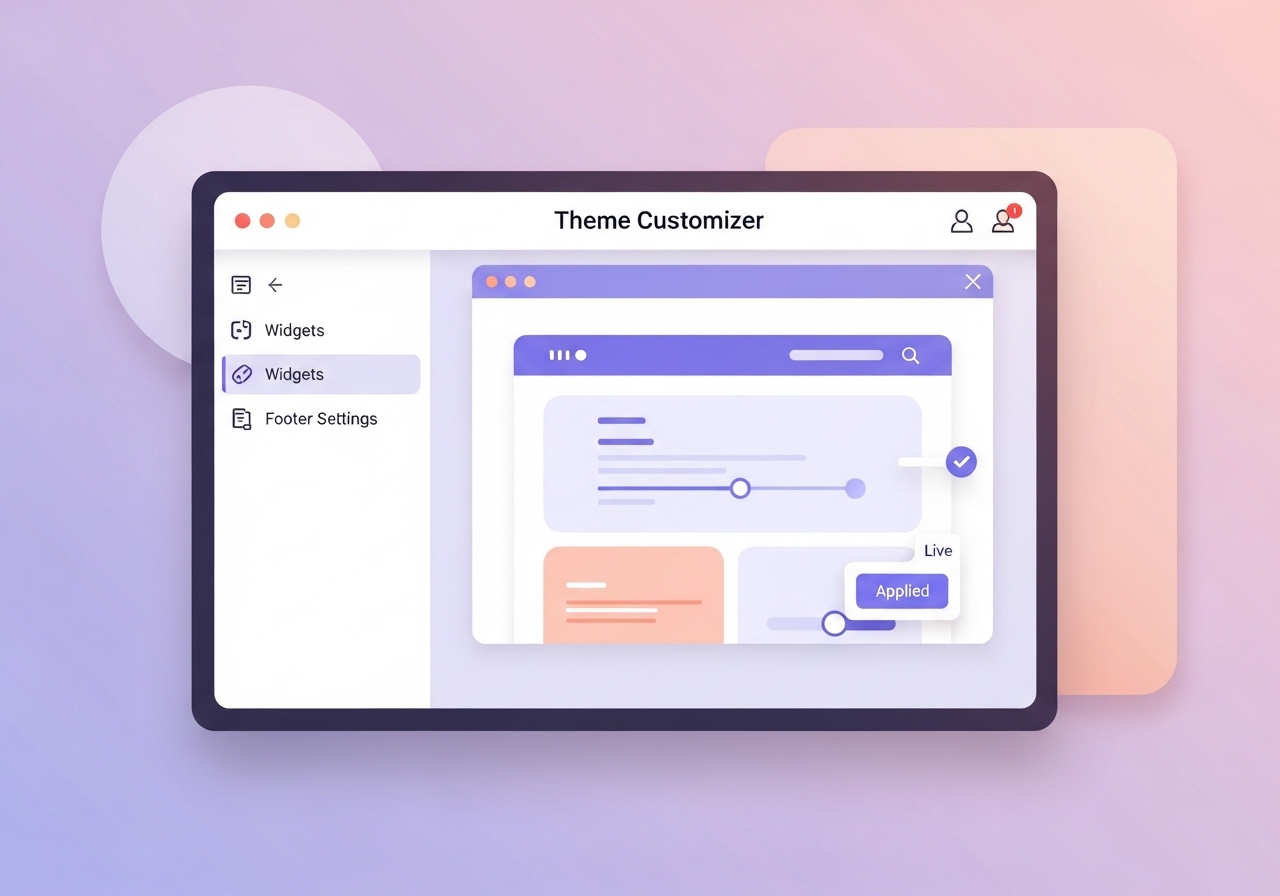
Method 1: How to Edit the Footer in WordPress Using the Theme Customizer
For most classic WordPress themes, the Theme Customizer is the simplest way to make footer changes. It provides a live preview, allowing you to see your edits in real-time before publishing them. This method is ideal for modifying existing footer widget areas, changing copyright text, or adjusting basic style options provided by your theme.
- Navigate to the Customizer: From your WordPress dashboard, go to Appearance → Customize. This will open the live theme customization interface.
- Locate Footer Options: Look for a menu item labeled “Footer,” “Footer Settings,” or “Widgets.” The exact naming can vary depending on your theme. If you can’t find a dedicated footer section, your footer content is likely managed by widgets.
- Edit Footer Widgets: If your theme uses widget areas, click on the “Widgets” panel. You will see sections like “Footer 1,” “Footer 2,” etc. Click on each one to add, remove, or reorder widgets such as Custom HTML, Navigation Menu, or Text blocks. This is where you typically add contact details, quick links, or social media icons. A well-structured footer is a small but important part of the broader types of SEO that contribute to a positive user experience.
- Update Copyright Text: Some themes have a specific option in the Customizer for editing the copyright line (e.g., under “Footer Bottom” or “Copyright Settings”). This lets you change the text without needing a widget.
- Publish Your Changes: Once you are satisfied with the edits, click the “Publish” button at the top of the Customizer panel to make your changes live.
Method 2: Editing the Footer with the Full Site Editor (Block Themes)
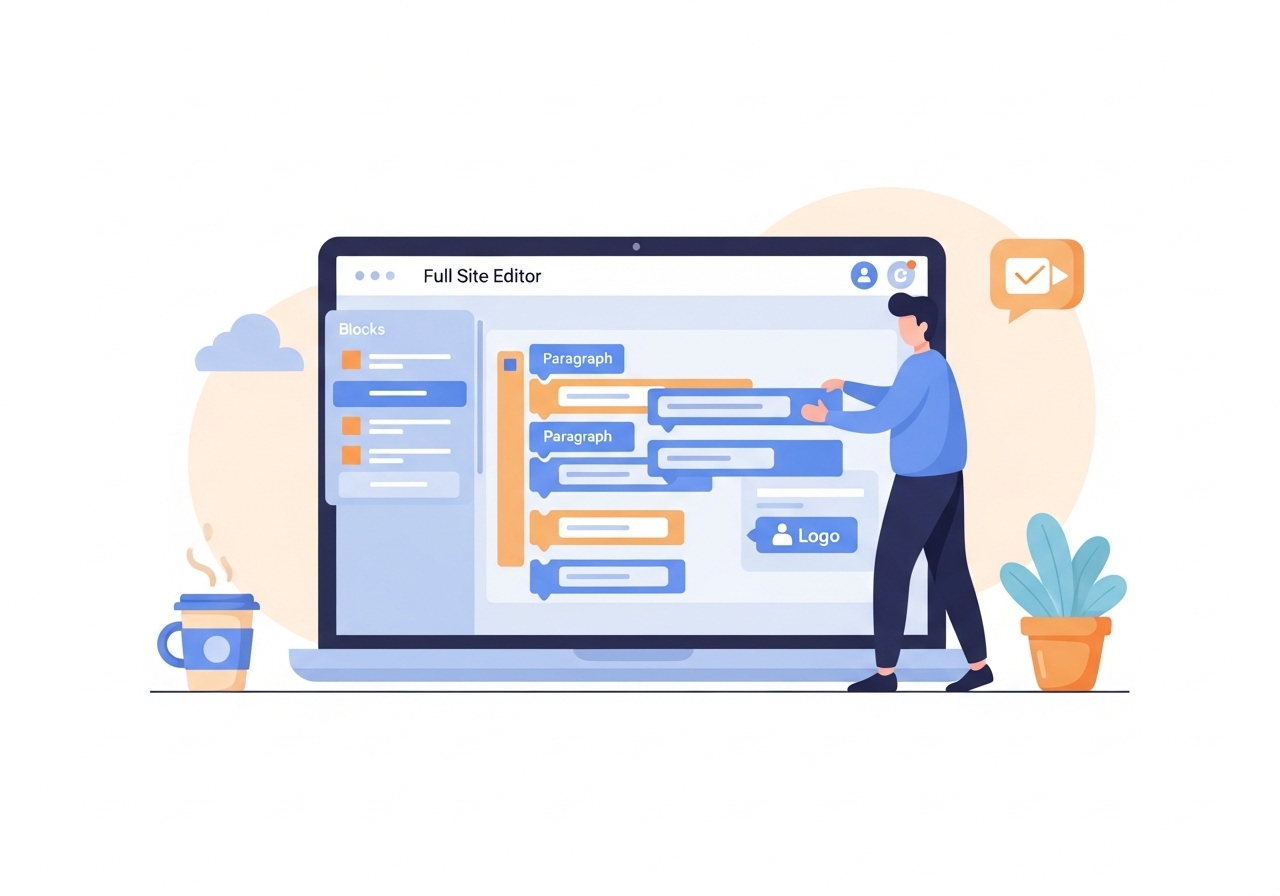
If you’re using a modern block theme (like Twenty Twenty-Two or Twenty Twenty-Three), the entire editing experience is different. Instead of the Customizer, you will use the Full Site Editor. This powerful tool gives you block-based control over every part of your site, including the header and footer, offering much more design flexibility.
- Access the Site Editor: From the WordPress dashboard, go to Appearance → Editor. This will load the main site editor interface.
- Open the Footer Template Part: In the editor, you need to access the footer “template part.” You can often do this by clicking on the “Patterns” section in the left sidebar and finding the template part labeled “Footer.” Alternatively, you can open any template (like “Page”) and scroll down to click directly on the footer area to begin editing it.
- Edit with Blocks: The footer is built with blocks, just like a page or post. You can click on any block (like a Paragraph, Site Logo, or Navigation block) to modify it. Use the “+” icon to add new blocks for columns, social icons, or any other content you need.
- Save Your Changes: After arranging and editing the blocks to your liking, click the “Save” button in the top-right corner. WordPress will ask you to confirm that you want to save the changes to the Footer template part. Click “Save” again to apply the new footer across your entire site.
Method 3: Using a Plugin for Advanced Footer Customization
Sometimes, your theme’s built-in options are not enough. If you need a completely custom footer design, conditional footers that appear on specific pages, or an easy drag-and-drop interface, a plugin is an excellent solution. Many page builders and dedicated header/footer plugins offer this functionality.
- Choose and Install a Plugin: Search the WordPress plugin repository for “header footer builder” or use the one included with your page builder (like Elementor or Beaver Builder). Install and activate your chosen plugin.
- Create a New Footer Template: Navigate to the plugin’s settings, which are usually found under Appearance or as a new top-level menu item. Find the option to create a new template and select “Footer.”
- Design Your Footer: The plugin will provide a visual builder interface. Drag and drop elements like text boxes, images, menus, and forms to construct your ideal footer. You can precisely control columns, colors, and spacing. This is a great place to add important navigational aids to improve site structure, which relates to the principles behind using breadcrumbs for SEO.
- Set Display Rules: A key benefit of plugins is the ability to set display conditions. You can choose to show your new footer on the “Entire Site” or specify certain pages, posts, or archives where it should appear.
- Publish the Footer: Once your design and display rules are set, save and publish the template. The plugin will automatically override your theme’s default footer with your new custom design.

Method 4: Directly Editing the footer.php File (Advanced)
This method involves editing your theme’s code and is only recommended for users who are comfortable with HTML, CSS, and PHP. Before proceeding, always create a full backup of your site and use a child theme. Editing a parent theme directly is risky because any changes will be lost when the theme is updated.
- Create and Activate a Child Theme: If you don’t already have one, set up a child theme for your parent theme. This ensures your modifications are safe from theme updates.
- Access Your Theme Files: You can access your theme files in two ways. The first is via the WordPress dashboard under Appearance → Theme File Editor. The second, more reliable method is to connect to your server using an FTP client (like FileZilla).
- Copy and Edit footer.php: Locate the
footer.phpfile in your parent theme’s directory. Copy this file into your child theme’s directory, keeping the same file structure. Now, open the copiedfooter.phpfile in your child theme for editing. - Make Your Code Changes: Here you can directly modify the HTML structure and PHP tags. You could hard-code a new copyright notice, add custom scripts, or insert new structural `div` elements for styling with CSS.
- Save and Upload: Save the modified
footer.phpfile. If you are using FTP, upload the file back to your child theme’s directory on the server, overwriting the copy you made. Your changes should be immediately visible on your site.
The website footer is a valuable asset for communication and navigation. By following these methods, you can easily update copyright dates, add promotional links, or perform a complete redesign to match your brand’s standards. Whether you prefer a simple widget edit or the full control of a code-based approach, WordPress provides the flexibility to get the job done efficiently.
Managing site details like footers is just one small part of building a successful online presence. The biggest challenge is consistently creating high-quality content that drives organic traffic. Ascend automates your entire blog content strategy, from keyword research to writing and publishing daily, on-brand articles directly in WordPress. Stop spending hours on content creation and let AI do the heavy lifting. Discover how Ascend can grow your traffic while you focus on your business.
Written by
Ascend
Ascend is an automated SEO engine for WordPress. It handles keyword research, writes high-quality, search-optimized content, and publishes it directly to your site, so your traffic can grow on autopilot. Learn more