
How to Edit Footer in WordPress: A Step-by-Step Guide
The footer of your WordPress site is valuable digital real estate. It appears on every page, making it the perfect spot for essential information like contact details, copyright notices, and important links. Knowing how to edit the footer in WordPress is a fundamental skill for maintaining a professional and user-friendly website. Fortunately, WordPress provides several straightforward methods to make these changes, ensuring your site’s foundation is always up to date.
The right method for you depends almost entirely on the theme you are using. Older or “classic” themes typically use the Theme Customizer or widgets, while modern block themes rely on the Full Site Editor. We will walk through each approach so you can confidently update your site’s footer, regardless of your setup.
Method 1: Using the WordPress Theme Customizer
For most classic themes, the Theme Customizer is the most direct way to edit the footer. It provides a live preview of your site, so you can see changes as you make them before publishing them to your live site. This real-time feedback loop is helpful for making precise adjustments to text and settings.
Step 1: Navigate to the Customizer
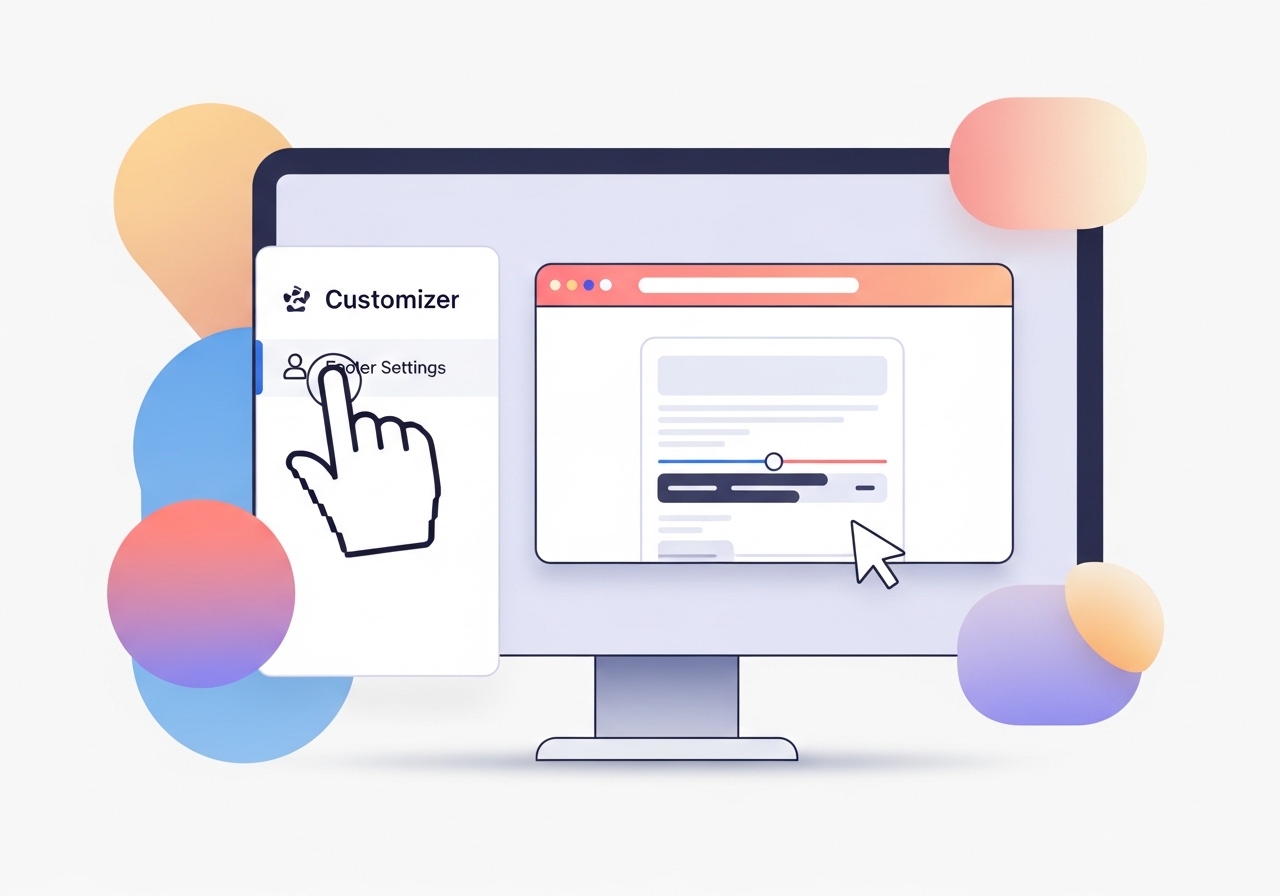
From your WordPress dashboard, go to Appearance > Customize. This will launch the live theme customizer interface. Your website preview appears on the right, and the customization options are in a panel on the left.
Step 2: Locate Footer Options
In the left-hand menu, look for an option labeled “Footer,” “Footer Settings,” or something similar. The exact name and location of this setting can vary significantly from one theme to another. Some themes may have sub-options for layout, colors, and content, such as the copyright text. Take a moment to explore the available panels if it’s not immediately obvious.
Step 3: Make Your Changes and Publish
Once you find the footer section, you can make your edits. This might involve updating the copyright year, adding a tagline, or changing contact information. As you type, the preview on the right will update instantly. This allows you to check for typos or formatting issues on the spot. When you are satisfied with the changes, click the Publish button at the top of the menu to make them live.
Method 2: How to Edit Footer in WordPress Using Widgets
If your theme has a widgetized footer, you can use the Widgets screen to add, remove, and reorder content. This method is common for themes that have multi-column footers designed to hold different types of information, like an “About Us” blurb, recent posts, or a contact form. These widgets offer a modular way to build a rich footer experience.
Step 1: Go to the Widgets Screen
In your WordPress admin panel, navigate to Appearance > Widgets. Here, you will see a list of available widgets and the different widget-ready areas your theme supports, including those for the header, sidebar, and footer.
Step 2: Find the Footer Widget Areas
Look for widget areas named “Footer 1,” “Footer Column 2,” or similar. The number of footer areas depends on your theme’s design. You can expand each one to see the widgets currently active in that section. If it’s empty, you can add new ones.
Step 3: Add or Edit Widgets
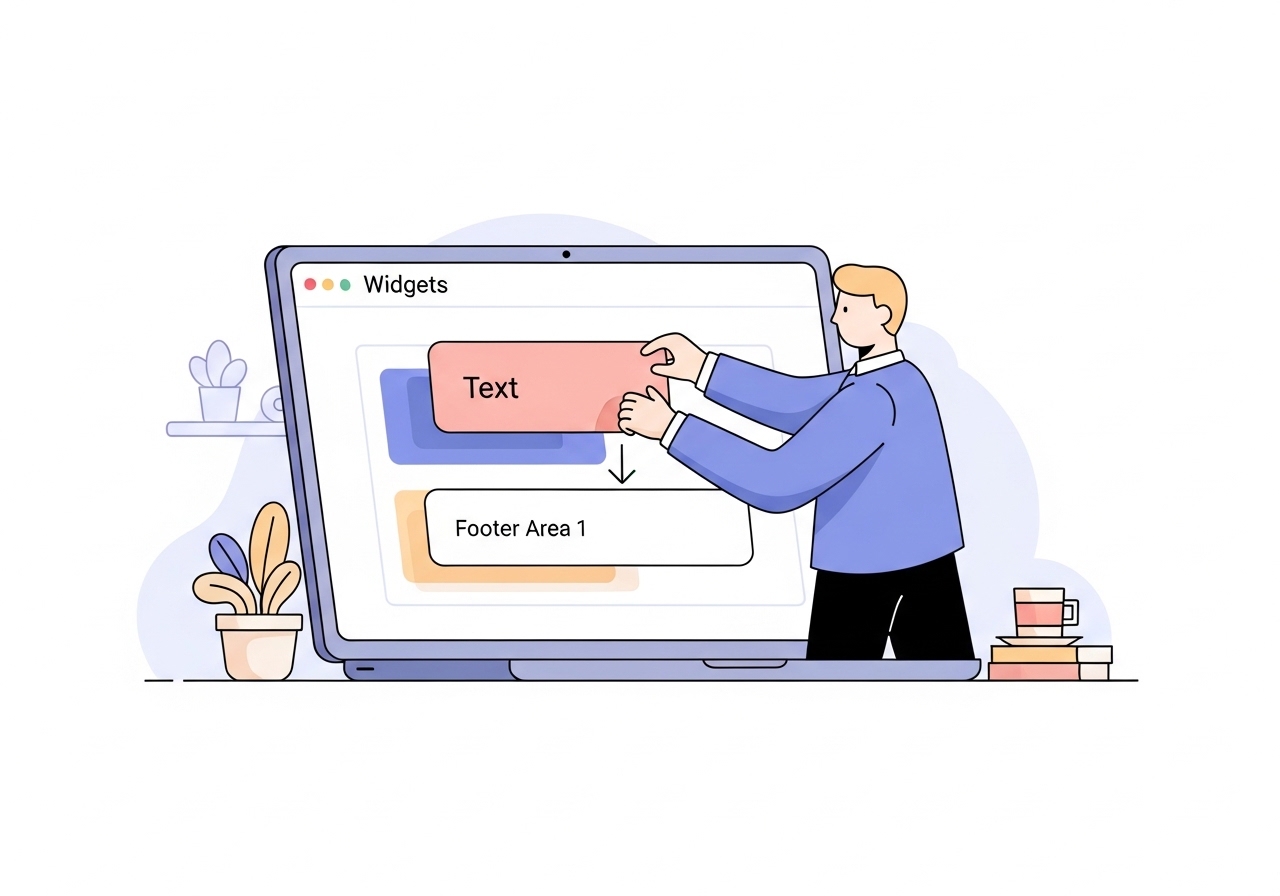
To add new content, drag a widget from the “Available Widgets” list and drop it into your desired footer area. To edit an existing widget, simply click on it to expand its options. You can use a “Text” or “Custom HTML” widget to add copyright information, addresses, or links. Many people use the “Navigation Menu” widget to add important links, complementing other site navigation tools and improving usability with breadcrumbs. After arranging and configuring your widgets, click Save or Update.
Method 3: Using the Full Site Editor (for Block Themes)
If you are using a modern block theme (like Twenty Twenty-Four), you will not see “Customize” or “Widgets” under the “Appearance” menu. Instead, you will use the Full Site Editor, which provides control over all parts of your site, including the footer, using the block editor.
Step 1: Open the Site Editor
From the dashboard, go to Appearance > Editor. This will open the Full Site Editor, which allows you to modify global styles, templates, and template parts directly.
Step 2: Select the Footer Template Part
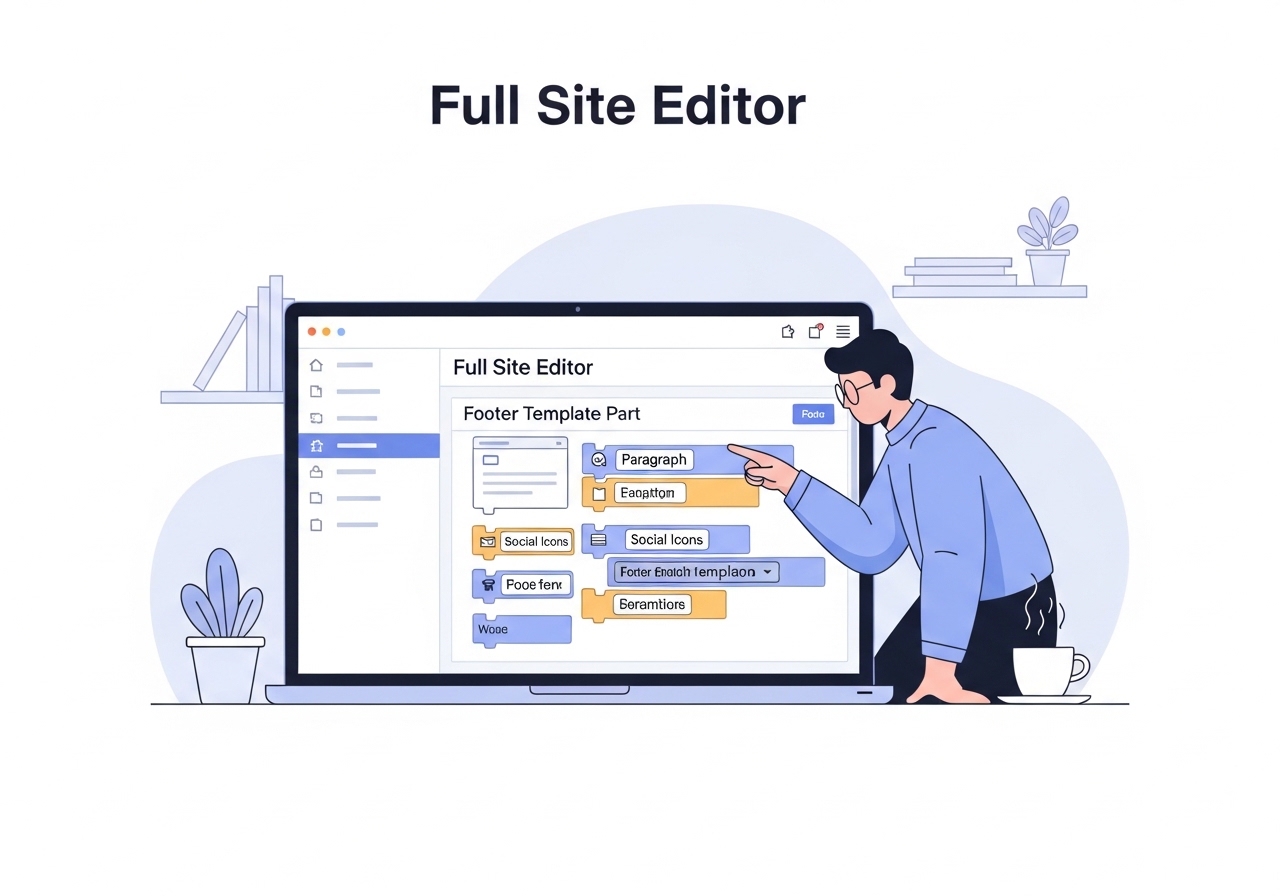
You may see your site’s homepage template by default. To edit the footer, you can either scroll down and click directly on the footer area or open the “Patterns” menu from the left sidebar and find your theme’s “Footer” template part under the “Template Parts” section. Clicking it will allow you to edit it in isolation, which can make focusing on the changes easier.
Step 3: Edit the Footer with Blocks
With the footer selected, you can edit it just like any WordPress page or post. You can change text, add new blocks like columns or social media icons, and modify colors and spacing. All changes are made using the familiar block interface, giving you granular control over the layout and content. When finished, click Save to apply the updates across your entire site.
Other Methods for Footer Customization
Sometimes you need more control than the default options provide. In these cases, you might consider a plugin or editing code directly, although the latter requires a higher level of technical skill.
Editing footer.php (For Advanced Users)
Some themes have hardcoded footer content in the footer.php template file. Editing this requires caution and is only recommended for users comfortable with PHP and HTML. Always use a child theme before making any changes to theme files. This prevents your customizations from being overwritten when the parent theme is updated. You can access this file via Appearance > Theme File Editor or through an FTP client.
Using a Plugin
For tasks like adding tracking scripts (e.g., Google Analytics) or creating visually complex footers, a plugin can be a safe and easy solution. Plugins like “Insert Headers and Footers” let you add code snippets without touching theme files, which is great for marketing pixels and analytics code. Page builder plugins often include their own theme builders for creating a completely custom footer with a drag-and-drop interface.
Choosing the right way to edit your footer comes down to your theme’s capabilities and your comfort level. For most users, the Theme Customizer, Widgets screen, or Full Site Editor will provide all the tools necessary to keep this important section of your website current and effective. By following these steps, you can ensure your footer accurately reflects your brand and provides valuable information to your visitors.
Maintaining your website takes time. While you handle the design and technical details, let Ascend automate your content creation. Ascend integrates with your WordPress site to research, write, and publish a high-quality, SEO-optimized blog post every single day. Stop spending hours on content and start growing your organic traffic effortlessly. Learn how Ascend can build your content engine.
Written by
Ascend
Ascend is an automated SEO engine for WordPress. It handles keyword research, writes high-quality, search-optimized content, and publishes it directly to your site, so your traffic can grow on autopilot. Learn more